How booking and pre-booking a taxi works
Book a taxi for now, or pre-book one for any of the next 7 days, in the free Dunfermline Taxi App. This guide takes you through each step, from entering your pickup to paying and seeing your driver’s details.
Get the free app
- Free
- iPhone (iOS 16.4 or later)
- Android phones
- UK App Store and Google Play
Booking at a glance
Everything happens in the app, in this order. Select a step to read more about it.
- Create your accountDownload the free app, sign up and confirm your email.
- Enter your journeyYour pickup, up to 3 stops on the way and your destination.
- Choose whenPickup now, or pre-book a pickup for any of the next 7 days, including today.
- Add the detailsPassengers, luggage, child-seat requests and a note for the driver.
- Review your fareAccept the fixed fare, or decline it at no charge.
- Pay in the appBy card, or with Apple Pay on iPhone.
- See your driver’s detailsName, vehicle and registration once a driver is assigned.
- Your bookingsYour upcoming and previous bookings stay together in the app.
Key facts
- Where you book
- In the Dunfermline Taxi App for iPhone and Android. There’s no booking form on this website.
- When
- Now, or pre-booked for any of the next 7 days, including today, in 30-minute slots from 07:00 to 22:30.
- Vehicle
- Standard car for up to 4 passengers. For 5 to 8, ask for an 8-seater quote on WhatsApp.
- Fare
- A fixed fare, shown in the app before you pay.
- Payment
- Card, or Apple Pay on iPhone, paid in full in the app.
- Cancelling
- No charge to cancel in the app before you pay.
Create your account
You need a free account to book a taxi in the app.
Download the Dunfermline Taxi App from the App Store (iPhone, iOS 16.4 or later) or Google Play (Android phones), open it and tap Create an account. You’ll be asked for:
- your name
- your email address
- your phone number
- a password of at least 8 characters
Then confirm your email address. If the confirmation email doesn’t arrive, the sign-in screen lets you send it again. You need to be signed in to book, but the app’s help, privacy and terms screens can be read without signing in.
Bookings are made in the app. There’s no booking form on this website, so start by downloading the Dunfermline Taxi App.
Enter your journey
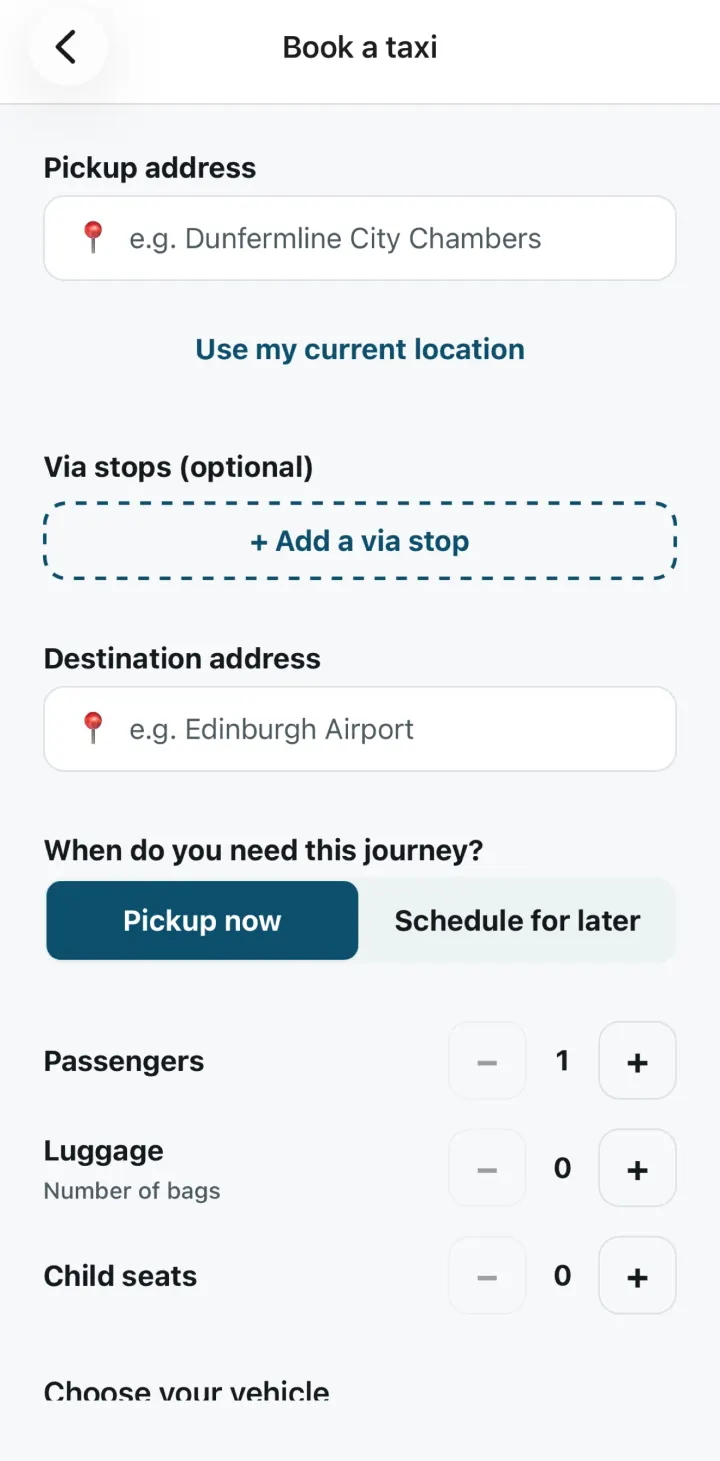
On the home screen, tap Book a taxi, or Schedule for later if you want to pre-book. Then add:
- Your pickup address. Start typing and choose the matching address from the suggestions, or tap Use my current location to fill it in from your phone’s location.
- Stops on the way (optional). Add up to 3 stops, for example to collect a friend or drop someone off before your destination.
- Your destination. Choose it from the suggestions in the same way. Journeys to and from Edinburgh Airport are booked in the same way: see taxis between Dunfermline and Edinburgh Airport.
Using your current location
Location is optional and used only when you attach your current position to a pickup. The app does not use location in the background.
Waiting somewhere specific, such as a particular entrance? Say so in the note for the driver (see passengers, luggage and notes). For the train stations and Queen Margaret Hospital, our guide to taxi pickups in Dunfermline may help.
Book now or schedule for later
Under When do you need this journey? choose one of two options:
- Pickup now if you need a taxi now.
- Schedule for later to pre-book a pickup date and time.
Pre-booking a taxi for any of the next 7 days
To book a taxi in advance, choose Schedule for later, then pick a date and a pickup time. Schedule a pickup for any day in the next 7 days, including today, in 30-minute slots from 07:00 to 22:30 (UK time).
Times that have already passed can’t be chosen. If your journey is further ahead than the dates the app offers, book it once its date appears in the 7-day list. Pre-booking lets you choose a pickup date and time in advance.
When your booking is confirmed
A submitted request is not guaranteed until the app confirms the booking or a member of the team confirms it with you. Your booking is passed to dispatch only once your payment has gone through (see paying in the app).
Passengers, luggage and notes
Before you continue, tell us who’s travelling and anything the driver should know:
- Passengers. How many people are travelling.
- Luggage. How many bags you’re bringing.
- Child seats. You can request child seats when you book. The request is passed to our dispatch team as a note, and it doesn’t confirm that a seat will be provided.
- Vehicle. The app books the 4 seater, a standard car for up to 4 passengers. A larger group can ask for an 8-seater quote instead: see groups of 5 to 8.
- Notes to driver (optional). Up to 200 characters, for example where exactly you’ll be waiting or that you have a bulky item.
Your fare
You see a fixed fare in the app and decide whether to accept it before anything is charged.
When your journey details are in, the app shows your fare quote, labelled Fixed fare, with the words “This is the exact amount you will be charged.”
Accept or decline
- Accept fare and continue takes you to payment.
- Decline fare cancels the booking, and you’re not charged.
When our team sets the fare
If the app can’t price your journey automatically, your booking is saved and waits for a fare from our dispatch team. The app checks for it automatically, and you can cancel at no charge while you wait. Journeys with stops on the way, and pickups set from your current location, are always priced by our team.
How fares are worked out
A fare is calculated from the road distance of your route or set by our dispatch team. Some quotes show a breakdown: a base fare and the miles it includes, the route distance and any additional mileage. Fares aren’t listed on this website. You always see yours in the app before you pay.
Airport journeys
Airport drop-off and parking charges will be included in your confirmed fare where applicable. Read more about booking a taxi to or from Edinburgh Airport.
Paying in the app
After you accept your fare, tap Choose how to pay to open Stripe’s secure payment form. You can pay:
- by card, on iPhone or Android
- with Apple Pay on iPhone
Your booking enters dispatch only after Stripe confirms the full payment. The whole fare is paid in the app before your journey, and there’s no option to pay in cash.
Card and Apple Pay details go directly to Stripe and are never stored by the app. On iPhone, the camera is used only if you choose to scan a card.
Changed your mind before paying? Tap Cancel unpaid booking on the payment screen. See cancelling or changing a booking.
Your driver
Once your payment is confirmed, our dispatch team assigns a driver to your booking. The app then shows:
- the driver’s name
- the vehicle make and model
- the vehicle colour
- the registration number
Check the colour and registration before you get in. The app also sends booking-status notifications, so allow notifications for the Dunfermline Taxi App when it asks.
The app doesn’t show your driver on a map. If something about your booking doesn’t look right, contact support.
Your bookings
Your upcoming and previous bookings stay together in the app. Once you’re signed in, open them from the home screen:
- Upcoming bookings: your active and scheduled journeys.
- Previous bookings: your completed and cancelled journeys.
Your account and data
To delete your account, go to Home → Account and privacy → Request account deletion and confirm. You can also ask on WhatsApp or by phone: see how to delete your customer account. Our privacy notice explains what booking details are kept and for how long.
Cancelling or changing a booking
Before you pay
You can cancel in the app at no charge:
- while you’re waiting for a fare, with Cancel booking
- when the fare is shown, by tapping Decline fare
- on the payment screen, with Cancel unpaid booking
To change an unpaid booking, cancel it and book again with the new details.
After you pay
Once a card payment is in progress or complete, the booking can’t be cancelled in the app. Contact support on WhatsApp or by phone as soon as you can, so the payment can be checked safely. Our terms of use ask you to contact support promptly about a cancellation, and your statutory consumer rights are not affected.
Groups of 5 to 8
The standard car takes up to 4 passengers. For 5 to 8 passengers, get a WhatsApp quote for an 8-seater.
The 8-seater isn’t booked in the app. Tap the 8 seater option in the app, or the button below, and WhatsApp opens with a quote request ready to complete: pickup, destination, passengers, luggage, pickup time and notes.
A quote request isn’t a booking. Nothing is arranged until a member of our team confirms it with you.
Getting help
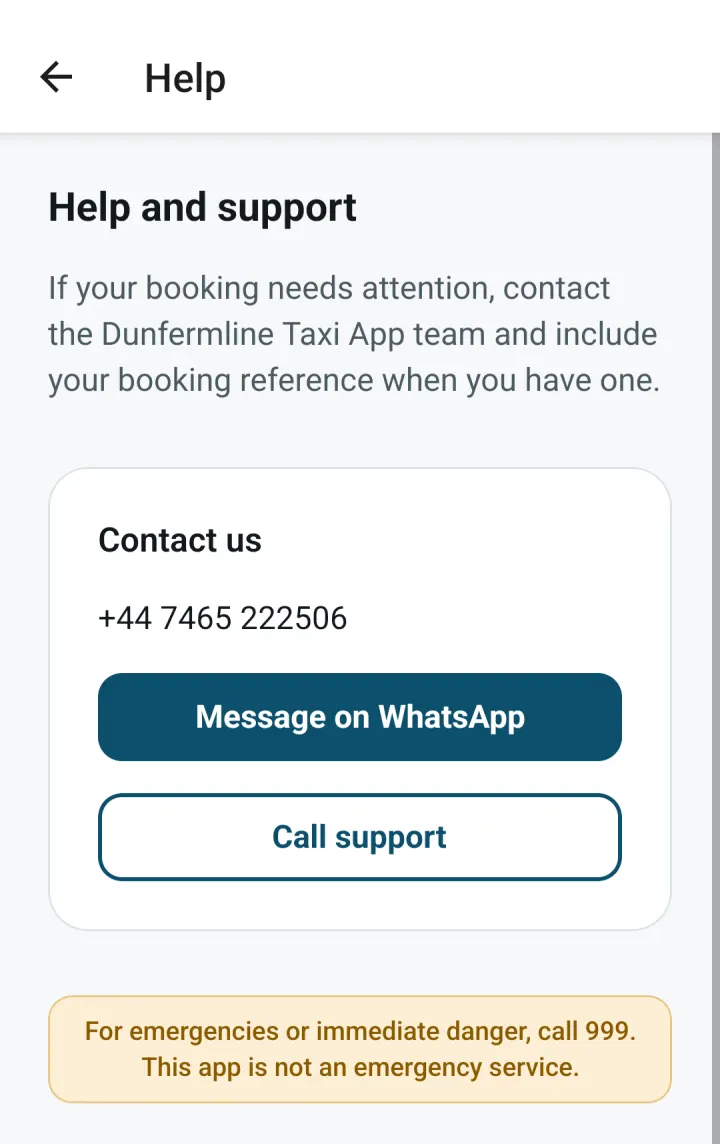
For help with a booking, your account or a payment, message support on WhatsApp or call +44 7465 222506. Include your booking reference if you have one. The same number handles privacy requests and account deletion.
Standard taxis are booked in the app. Our WhatsApp and phone line is for support and 8-seater quotes.
More answers are in our Dunfermline Taxi App FAQs and on the support page.
Get the Dunfermline Taxi App
Download the free app for iPhone or Android, create your account and book your first taxi now or for any of the next 7 days.


- Free
- iPhone (iOS 16.4 or later)
- Android phones
- UK App Store and Google Play